User Reports

User Reports

The User Reports tab contains various information regarding your student's training time, curriculum progress, and more.

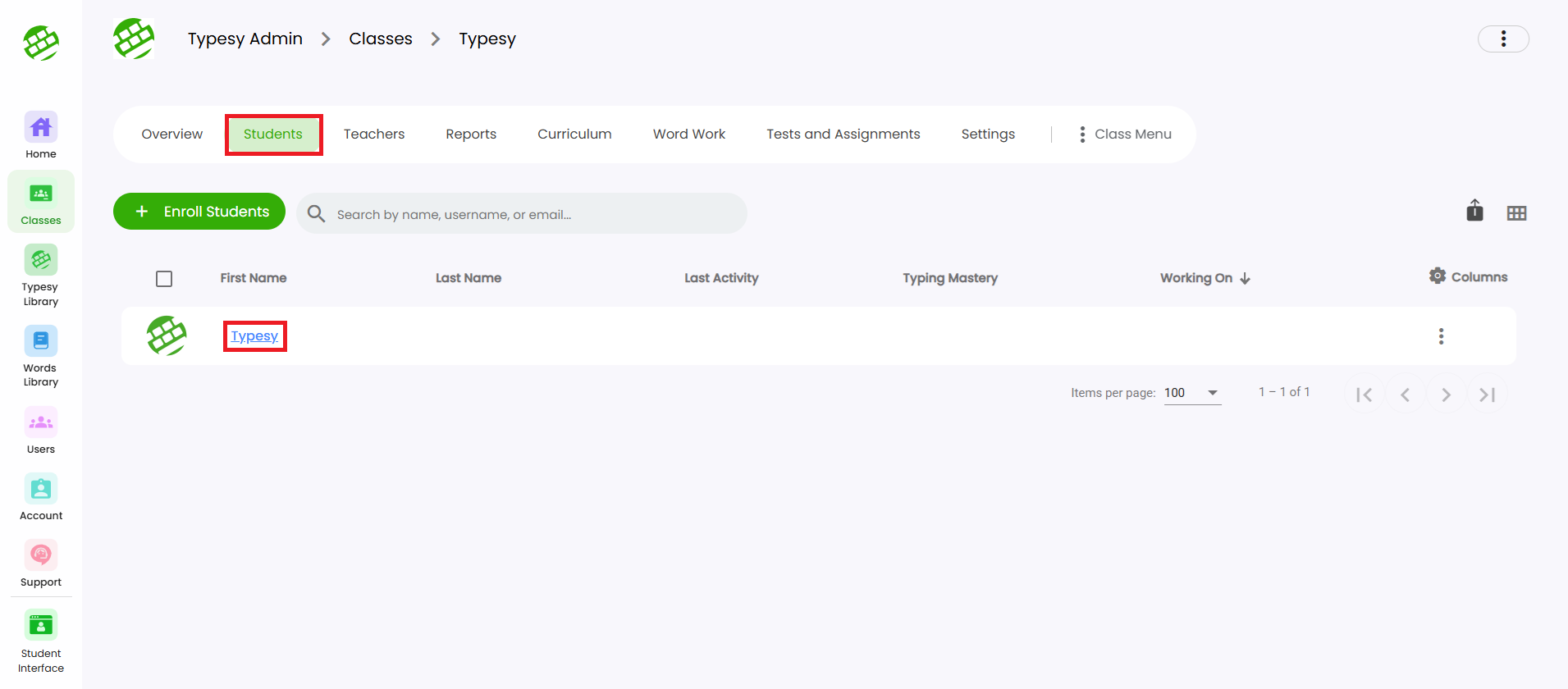
1. To access this area, go to your Class, select Students, then click on the student's first or last name.


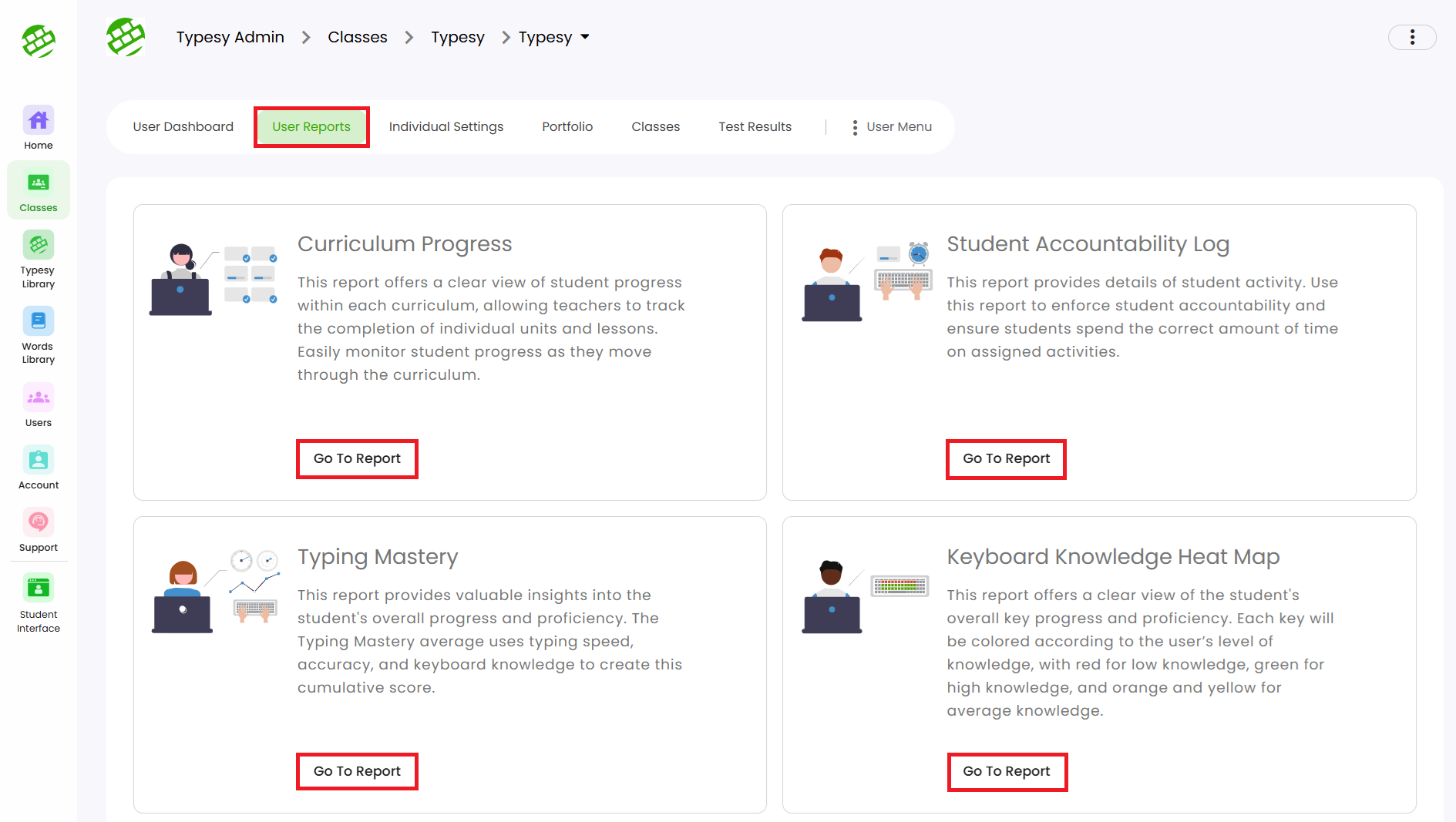
2. You will be taken to their User Dashboard. Next, click on User Reports and select a report by clicking Go To Report.


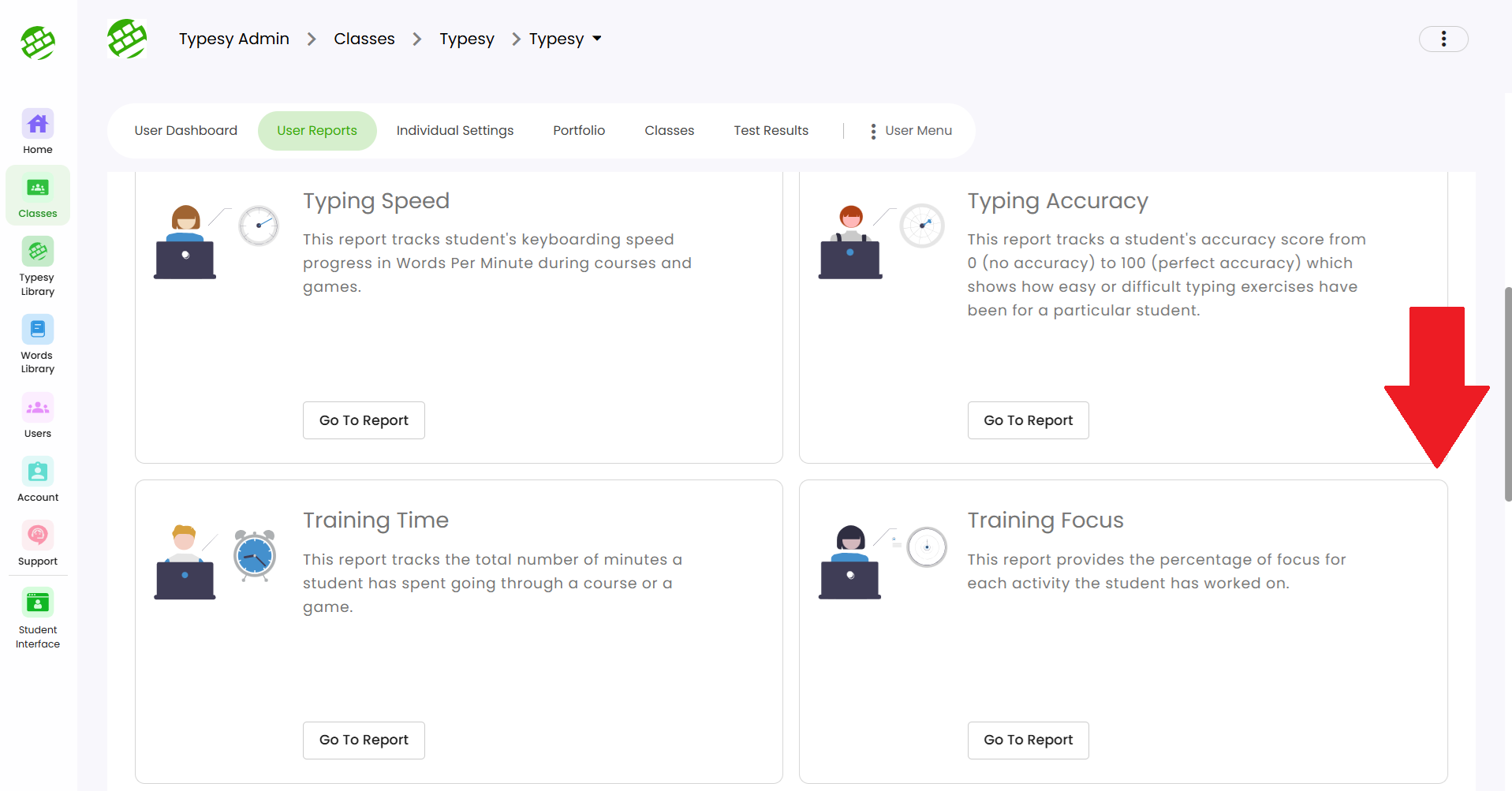
3. Different report categories are also available when you scroll down.

    • Related Articles

    • User Reports

      The User Reports tab provides details on your student’s training time, curriculum progress, and more. 1. To access it, go to your Class, select Students, then click the student’s first or last name. 2. You’ll be taken to their User Dashboard. Click ...
    • How do I check student progress?

      <span class="size" ...
    • Class Reports

      1. Access the Reports tab by going to Reports from your class dashboard. 2. Select a report type, then click Go To Report. 3. Each report category shows different data to help you track class progress. 4. Use these icons to: Learn more about the ...
    • User Dashboard

      1. To access the User Dashboard, go to Class, select Students, then click the student’s first or last name. 2. The dashboard shows key student information and provides account management options.
    • What is course progress?

      Course progress refers to a user’s advancement through a curriculum, based on the number of lessons (steps) completed.