How does the Login As feature work?
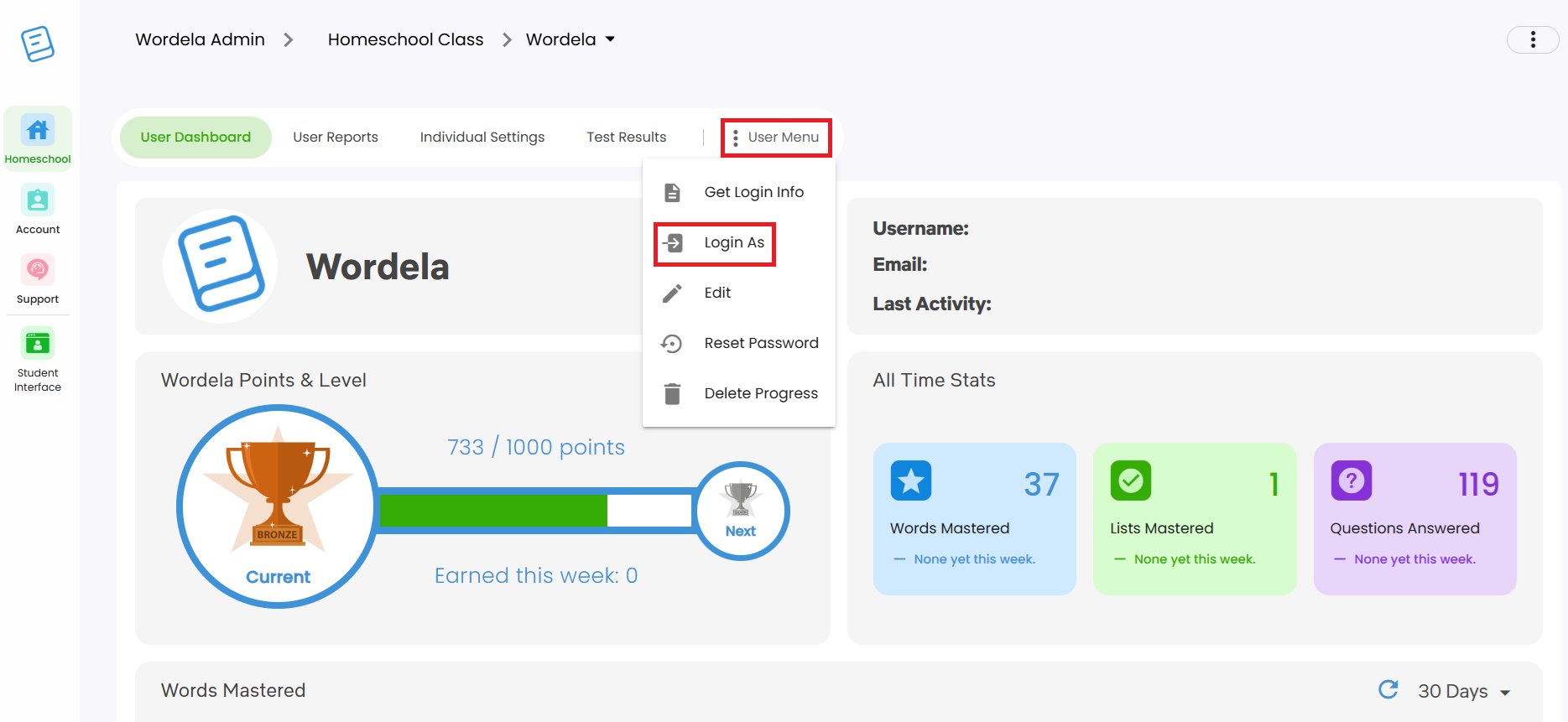
The Login As option is located in the student’s User Dashboard.
Please note: Using this feature signs you in to their account as the admin. Any activity will reflect in their progress reports in real time.
1. To use this feature, go to Class, Students, click the three dots, then select Login As.
2. This option is also available in their User Dashboard by clicking on User Menu, and selecting Login As:
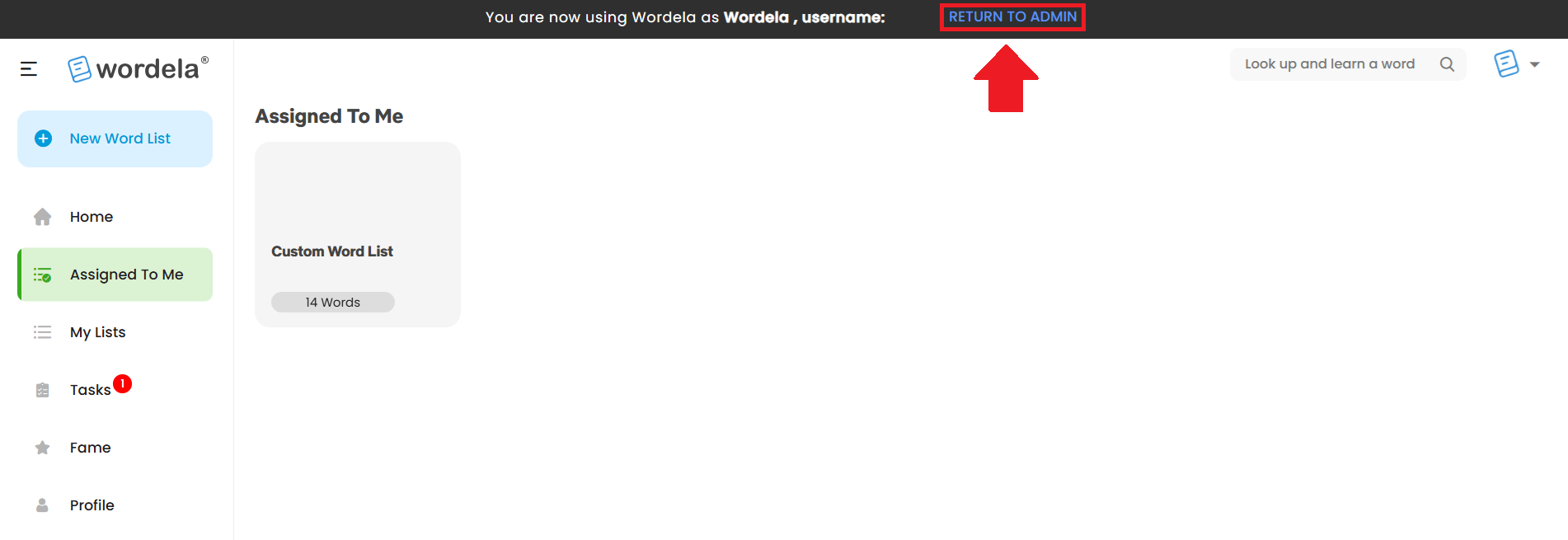
3. To return to your Admin account, click on Return to Admin.
Related Articles
How does the Login As feature work?
The Login As feature allows you to access a student’s account directly from the admin interface. This is especially useful for checking what the student sees on their end, troubleshooting issues, or confirming that assigned tasks and settings are ...
How can I view my student's login information?
1. From Class > Overview, click Print Logins from the Class menu, then select Show On Screen. 2. Here, you'll see your students' Name, Username, Email Address (if available), and Password. You can also click Copy to Clipboard to copy their login ...
Can I have my students login through Google without a Google Classroom setup?
Yes, your students can definitely sign in using the SSO option with Wordela, even if you don't have a Google Classroom setup. When individually creating their user accounts or importing their account credentials using the import option with a CSV ...
How do I use the Native Language feature?
With the Native Language Help feature, you and your students can use different languages to support your learning journey.. 1. Click on your profile picture, then select Preferences. 2. Click on My Native Language and choose your preferred language. ...
Word Search Feature
Wordela’s Search Bar lets you look up any word and add it to a custom word list. You can choose an existing list or create a new one. To use this feature, type a word into the search bar, click the Add icon, then select or create the word list you'd ...